
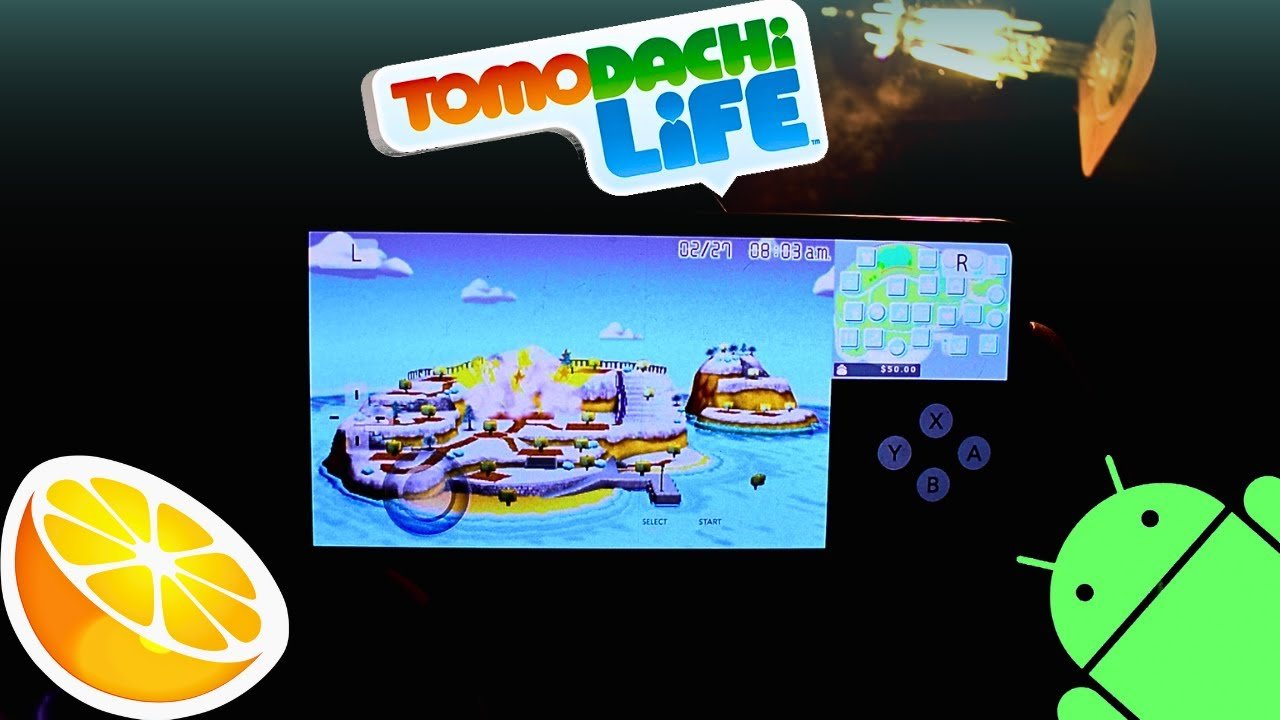

If you’re getting lag, frame drops, or stuttering while playing Tomodachi Life on your phone, you’re not alone. Many users report that their Tomodachi Life emulator runs slow on Android, especially on mid-range devices.
The good news is that most performance problems are fixable. In this guide, we’ll explain:
- Why Tomodachi Life runs slowly on Android
- What causes emulator lag
- Step-by-step solutions to improve performance
- Device requirements for smoother gameplay
By the end, you’ll understand exactly how to reduce lag and improve speed on your Android device.
Why Does Tomodachi Life Run Slow on Android?
Tomodachi Life was first built for Nintendo 3DS hardware. When running through an Android 3DS emulator, your phone must simulate the entire console environment in real time.
That means your device is handling:
- CPU emulation
- GPU rendering
- Audio processing
- Input translation
- Game logic execution
This is a hardware-intensive operation, and if your phone isn’t powerful enough, or if your settings aren’t optimal, you may get low FPS (frames per second).
Common Causes of Tomodachi Life Emulator Lag
1. Low-End or Older Hardware
If your phone has:
- Less than 4GB RAM
- An entry-level processor
- An older GPU
You may notice a reduction in performance during animated scenes, island events, or busy character interactions.
Tomodachi Life has constant character animation, which increases GPU demand.
2. High Internal Resolution Settings
Many people upgrade resolution to improve visuals. However, raising the resolution too high significantly increases GPU demand.
If your tomodachi life emulator android setup is running at 3x or 4x resolution, performance will drop on most devices.
3. Background Apps Consuming Resources
Android allows you to run numerous programs in the background. These apps consume:
- RAM
- CPU cycles
- System resources
This reduces available power for the emulator.
4. Incorrect Emulator Configuration
Using wrong settings in your 3DS emulator (such as Citra Emulator) can result in instability or lag.
Common mistakes include:
- Disabled hardware rendering
- Overclocking emulated CPU
- Advanced graphics tweaks on mid-range devices
5. Thermal Throttling
If your phone becomes too hot, Android automatically limits performance to avoid damage. This is known as thermal throttling and is typical during extended play sessions.
How to Fix Slow Performance (Step-by-Step)
Fix 1: Lower Internal Resolution
This is the most effective solution.
- Open your emulator
- Go to Graphics Settings
- Set internal resolution to 1x or 2x
- Restart the emulator
Lower resolution dramatically reduces GPU burden and frequently stabilizes FPS.
Fix 2: Enable Hardware Rendering
Make sure hardware rendering is enabled in the emulator’s settings. This allows your GPU to assist with graphics processing rather than depending solely on CPU emulation.
If disabled, performance will drop dramatically.
Fix 3: Close Background Apps
Before launching Tomodachi Life:
- Close all unnecessary apps
- Clear recent applications
- Disable battery optimization for the emulator
Freeing up RAM increases the performance of the Android 3DS emulator.
Fix 4: Reduce Graphics Enhancements
Disable advanced options such as:
- Texture filtering
- High-resolution scaling
- Post-processing effects
While they improve the looks, they are not necessary for good gameplay.
Fix 5: Keep Emulator Updated
Performance enhancements are frequently provided in upgrades.
Update your emulator regularly to ensure:
- Bug fixes
- Performance optimizations
- Stability improvements
Fix 6: Keep Your Device Cool
If your phone overheats:
- Remove phone case during gameplay
- Avoid playing while charging
- Play in a cool environment
Preventing thermal throttling helps to ensure constant performance.
Recommended Android Specifications for Smooth Gameplay
For stable Tomodachi Life gameplay:
- Snapdragon 700 series or better
- 6GB RAM recommended
- Modern GPU support
- Android 10 or newer
High-end devices can effortlessly run the game at double the resolution. Mid-range devices should be limited to 1x-2x.
Does Lag Mean the Emulator Is Broken?
Not necessarily.
When users search “citra emulator tomodachi life slow” or “tomodachi life mobile emulator lag,” the issue is usually:
- Device limitation
- Incorrect settings
- High resolution configuration
In most cases, the emulator works perfectly.
When Performance Cannot Be Fully Fixed
If your device has:
- 3GB RAM or less
- Entry-level CPU
- Older GPU
You may not attain consistent performance regardless of the settings.
In such instances, playing Tomodachi Life on PC may deliver a more satisfying experience.
Is Emulator Lag a Safety Issue?
No. Lag is not indicative of a virus or malware.
However, always ensure:
- You downloaded the emulator from a trusted source
- You are not using modified APK versions
- You are not running bundled installer files
Final Thoughts
If your Tomodachi Life emulator is slow on Android, it’s likely due to resolution settings, background apps, device limits, or overheating.
The most effective fixes are:
- Lowering internal resolution
- Enabling hardware rendering
- Closing background applications
- Keeping your device cool
- Updating the emulator
With sufficient optimization, Tomodachi Life can operate nicely on most mid-range and high-end Android handsets.